Just wanted to share our setup, as reminder and help for others 😉
(do not forget to create a tmp and public folder inside your projects folder)
Just wanted to share our setup, as reminder and help for others 😉
(do not forget to create a tmp and public folder inside your projects folder)
Since my old Ubuntu lived a long live and saw numerous hacks, I chose to reinstall from scratch, here are the steps I took:
No more hacks, everything works, very fast startup (~10s), faster graphics (for intel chips) 😀
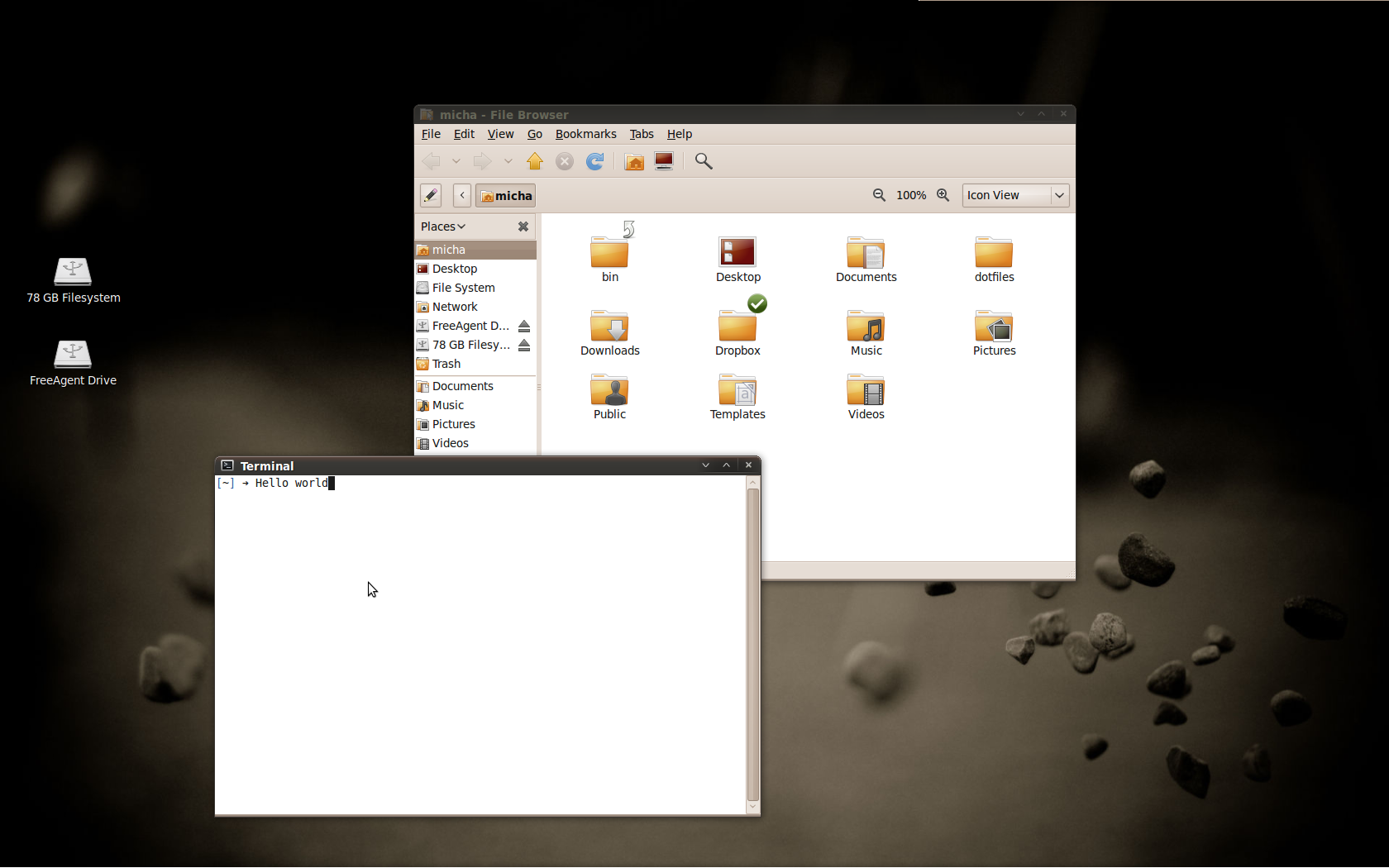
My new desktop
Making a certificate
sudo mkdir /etc/apache2/ssl
sudo /usr/sbin/make-ssl-cert /usr/share/ssl-cert/ssleay.cnf /etc/apache2/ssl/apache.pem
sudo a2dissite default-ssl
sudo a2enmod ssl
sudo /etc/init.d/apache2 restart
Configure passenger
<VirtualHost *:80>
 ServerAlias *.something.com
 RailsEnv development
 DocumentRoot /apps/something/public
</VirtualHost>
<VirtualHost *:443>
 SSLEngine on
 SSLCertificateFile /etc/apache2/ssl/apache.pem
 ServerAlias *.something.com
 RailsEnv development
 DocumentRoot /apps/something/public
</VirtualHost>
host
The normal answer to most ssh related problems is: “use public/private keys”
but sometimes this does not work…
What i did regularly was this:
Thats not very complicated, but its frustrating. What I do now is: “sshxx”, which executes this excpect script in ~/bin/sshxx
(For Ubuntu you need to “sudo apt get install expect” first)
Starting with the Railscasts episode on passenger I tried to get passenger working for development, since it removes the burden of always starting an extra console for the server and reveals errors that happen in passenger and not in mongel alone.
Apache should use the same group/user you use, otherwise you may get an 302 not allowed error, this can be changed in /etc/apach2/apache2.conf (User / Group).
httpd.conf
#/ets/apacha2/httpd.conf
# /apps is the folder where your projects lie
# I name them all *.lc so i can easily distinguish them from a live application
# if you use subdomains add the *. before the servername (example 1)
<Directory "/apps">
  Order allow,deny
  Allow from all
</Directory>

<Directory "/apps">
  Options FollowSymLinks
  AllowOverride None
</Directory>

<VirtualHost *:80>
  ServerAlias *.dw.lc
  PassengerPoolIdleTime 1800
  RailsEnv development
  DocumentRoot /apps/someproject/public
</VirtualHost>

<VirtualHost *:80>
  ServerAlias rs.lc
  PassengerPoolIdleTime 1800
  RailsEnv development
  DocumentRoot /apps/anotherproject/public
</VirtualHost>
hosts file
#/ets/hosts
127.0.0.1       de.dw.lc en.dw.lc fr.dw.lc
127.0.0.1       rs.lc
127.0.0.1       localhost
...
restart apache
sudo /etc/init.d/apache2 restart
Hope it works for you 😉
 Michael Grosser, the Blog